Contents
Getting Started & Login
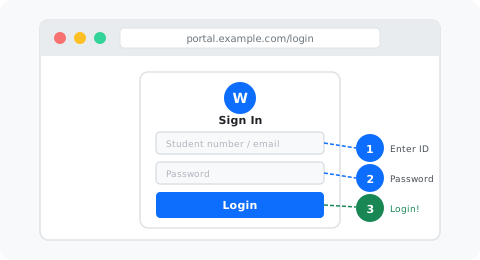
The GWN Portal is your central hub for WiFi access management. Here is how to sign in:
- Open /login.php in your browser.
- Enter your student number (or email) and your password.
- Click Login. You will be taken to your dashboard.
- First login? You may be asked to set a new password immediately.
Forgot your password? Click the Forgot Password link on the login page. A reset link will be emailed to you.
Troubleshooting & Common Issues
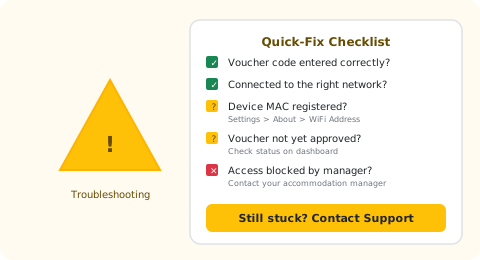
- Double-check that you typed the code exactly (no extra spaces).
- Ensure you are connected to your building's GWN network.
- Try forgetting the network and reconnecting to re-trigger the captive portal.
- Confirm your device MAC address is registered on your account.
- Check that your phone number in your profile is correct.
- Ask your manager to confirm the voucher was sent (check Voucher History).
- SMS messages can be delayed up to 10 minutes.
- If still not received, ask your manager to resend.
- Inactive: Your current voucher may have expired. Request a new one.
- Blocked: Your manager has suspended access. Contact them to resolve the issue.
- Use the Forgot Password link on the login page.
- Check that your student number is correct.
- If your account was recently created, ask your manager to confirm it is active.
- Still locked out? Use the contact form below.
- Android: Settings > About Phone > Status > WiFi MAC Address
- iPhone/iPad: Settings > General > About > WiFi Address
- Windows 10/11: Settings > Network > WiFi > Hardware Properties > Physical address (MAC)
- Windows (cmd):
ipconfig /allunder Wireless LAN adapter - macOS: System Settings > Network > Wi-Fi > Details > Hardware
- Linux:
ip link show— look for link/ether
Format: 6 pairs of hex digits, e.g. A1:B2:C3:D4:E5:F6